
Before you launch a WhatsApp campaign, the real question is not what to send but who to send it to. If your contacts live in three spreadsheets, with numbers missing country codes, duplicates everywhere and no clue about what each person bought, every send ends up generic. On WhatsApp, generic messages get ignored, blocked or reported, and that hurts your number’s quality.
This guide shows you how to import contacts into a WhatsApp CRM like Mercately, profile them with tags and custom fields, and segment contacts into lists ready for a campaign. It’s written for e-commerce and sales teams that want database imports, contact management and campaign sends in the same place. Every step follows Mercately’s official help center. The help center is only available in Spanish, so we keep the on-screen labels in Spanish (as you will see them in the app) with an English gloss the first time they appear.
Before you import: prepare your database
Most import errors can be prevented in the spreadsheet. Check these points before you open the CRM:
- Phone numbers with country code. Use international format, for example +593991234567 or +573001234567. Without the country code you will not be able to message the customer on WhatsApp.
- One row per contact. Don’t repeat the same phone number or email across rows. If two rows are the same person, merge them.
- A phone or email in every row. A row with neither is not imported.
- Consent (opt-in). Only import people who agreed to receive messages from your business, and mark anyone who asked not to be contacted with a tag such as “No contactar” (Do not contact).
- .xlsx format. The wizard only accepts Excel. If your data is in CSV or Google Sheets, download it as an Excel workbook (.xlsx).
Always start from the sample file Mercately provides and don’t rename the columns. The template headers are in English. Here is what a clean file looks like:
| First Name | Last Name | Phone | Tags | Agent | City | Country Code | Notes | |
|---|---|---|---|---|---|---|---|---|
| María | Pérez | [email protected] | +593991234567 | VIP Customer,Quito Store | [email protected] | Quito | EC | Buys monthly |
| Juan | Nieves | [email protected] | +573001234567 | Interested,Shoes | [email protected] | Cali | CO | Asked about sizes |
| Ana | Rojas | +5215512345678 | Inactive 90 days | Mexico City | MX |
What to know about each column, according to the Importar clientes desde Excel (Import customers from Excel) article:
- Phone must not repeat within the file.
- Tags accepts several tags separated by commas (for example, Follow-up,Important).
- Agent takes the email of the assigned agent, and that agent must already exist in your account.
- Optional columns also include Identification Type (cedula, pasaporte, ruc, rut or otro), Identification Number, Address, Description, State and Zip Code.
On volume: the help center says you can import up to 9,999 contacts in a single operation. If you have more, split the file.
Step by step: import contacts into Mercately
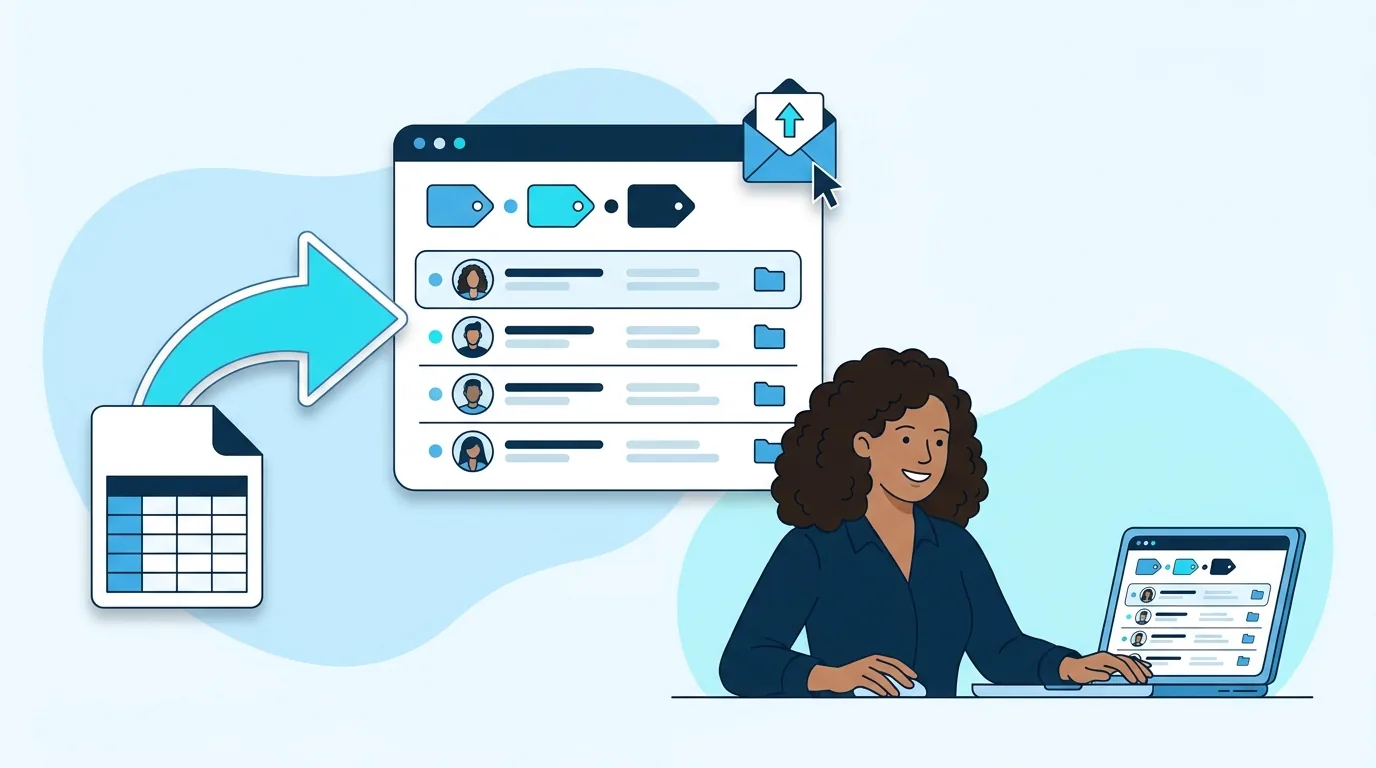
- Open the importer. Go to CRM → Gestión de clientes (Customer management) → Clientes (Customers), click Acciones (Actions) and choose Importar (Import).
- Download the sample file. In the Descargar archivo Excel (Download Excel file) section, click Descargar (Download) and fill in one row per customer, keeping the columns as they are.
- Upload the file. Drag it into the Cargar archivo (Upload file) box or click busca (browse) to select it.
- Create a list if you plan a campaign. Check Crea una lista a partir de esta importación (Create a list from this import) and type the list name. If you check the box and leave the name empty, you will see “Completa este campo” (Fill in this field).
- Click Siguiente (Next).
- Map the columns. Mercately shows each column in your file next to the customer field it maps to. Check, for example, that “Phone” is mapped to the phone number.
- Confirm the import. It runs in the background, so you can keep working.
- Check the results email. When it finishes you get an email. If any records were not imported, the email says which ones and why.
A useful detail: if a contact in the file already exists in your account, Mercately finds it by phone or email and updates it instead of creating a duplicate. That means you can also use an import to change tags or agents on many customers at once.
Profile your contacts: tags and custom fields
Importing is half the job. The other half is making each record tell you something useful.
Tags
Tags (Etiquetas) are color labels for classifying customers by interest, status or any criterion your business needs. Create them under CRM → Gestión de clientes → Etiquetas with Crear etiqueta + (Create tag), choosing a Nombre (Name) and Color. According to Cómo asignar etiquetas a un cliente (How to assign tags to a customer), there are five ways to apply them:
| Method | Best for | Where it’s set up |
|---|---|---|
| Manual | One specific customer | Create or edit customer form, Añadir etiquetas (Add tags) field |
| Import | Many customers at once | Tags column in the Excel file |
| MIA | Letting the AI tag based on what the customer says | Agent editor → Datos a recopilar (Data to collect) |
| Flow chatbots | Tagging based on the option the customer picks | Agregar etiqueta (Add tag) advanced action in a step |
| Funnel automations | Tagging based on the deal stage | Agregar etiquetas / Eliminar etiquetas (Add / Remove tags) advanced actions |
Two examples from the documentation: with MIA you can instruct “assign the Interested tag when the customer asks about prices or plans”. In a funnel, when a deal reaches “Ganado” (Won), you can add Active customer and remove Prospect. In a chatbot flow, the action goes in a Mensaje, Menú or Pregunta (Message, Menu or Question) step.
Avoid near-duplicate tags (“Interested” and “Interested customers”): they split your segments and confuse the team.
Custom fields
For data that doesn’t fit in a tag (order number, birthday, plan), use custom fields under CRM → Gestión de clientes → Campos personalizados (Custom fields) → + Crear campo (Create field). The available types are:
- Texto (Text): free-form information.
- Entero (Integer): whole numbers.
- Entero con decimales (Decimal): amounts or measurements.
- Verdadero o falso (True or false): yes/no answers, such as “Accepts promotions?”.
- Fecha (Date): birthdays, last purchase date, appointments.
- Lista (List): fixed options, each with a Valor interno (internal value: no spaces or accents, cannot be edited later) and a Valor a mostrar (display value).
The help center recommends the Lista type when the possible answers are known, because it makes filtering and analysis easier. Custom fields appear on the customer record under Datos adicionales (Additional data), can be used in flows, and MIA can fill them in during the conversation.
Segment for campaigns
In Mercately, a campaign segment is a customer list. Create one under CRM → Gestión de clientes → Lista de clientes (Customer lists) → + Crear lista (Create list): type the Nombre de la lista (List name), set your filters, click Aplicar filtros (Apply filters), check the preview (“Vas a agregar a tu lista N contactos”, meaning you are about to add N contacts) and click Guardar (Save).
The available filters, per Listas de clientes: crea grupos con filtros (Customer lists: build groups with filters), are Agentes (Agents), Etiquetas (Tags), Excluir etiquetas (Exclude tags), Fecha de creación (Creation date) and Embudos / Etapa del embudo (Funnels / Funnel stage). Tags within the same group combine with AND (the customer must have all of them), while separate groups, added with + Agregar grupo (Add group), combine with OR.
Three limits worth knowing:
- Once created, a list cannot be edited. To change it, create a new one.
- A list does not update itself: it keeps the customers who matched the filters when it was created.
- If your audience comes from outside Mercately, you can build the list from Excel via Acciones → Importar inside Lista de clientes.
Five example segments for an online store:
- Recent buyers. A November purchase tag, added by a funnel automation when the deal moves to “Ganado” or by an import from your store. Filter: Etiquetas = November purchase.
- Unclosed carts. The Embudos + Etapa del embudo filter set to the stage you use for pending orders, excluding Do not contact.
- By city or store location. A Quito Store tag (or the agent for that location with the Agentes filter). Useful for local promotions, as covered in WhatsApp marketing for multiple locations.
- By interest. Group 1: Interested AND Shoes. MIA or a flow can apply these tags based on what the customer asks.
- Inactive for 90 days. Lists have no last-purchase-date filter, so export that group from your store, import it with an Inactive 90 days tag and check Crea una lista a partir de esta importación.
In every case, add Excluir etiquetas: Do not contact.
Turn on sends and follow-ups
Once the list exists, create the campaign under Campañas → Crear campaña (Campaigns → Create campaign) in five steps, per Crear una campaña de WhatsApp API en Mercately (Create a WhatsApp API campaign in Mercately):
- Campaign info: WhatsApp integration, campaign name, send date and time (at least 5 minutes ahead) and customer list.
- Select a template approved by Meta.
- Fill in the variables: a customer field (for example, first name) or a fixed value.
- Actions: Marcar el chat como resuelto (Mark chat as resolved) is on by default; if the customer replies, the chat goes back to unresolved.
- Review your campaign and click Programar (Schedule). After that it cannot be edited; if you spot a mistake, cancel it and create a new one.
Prerequisites: an approved WhatsApp message template, a verified Business Manager and the right time zone. Before scheduling, confirm the list size is within your number’s daily limit. If this is your first bulk send, also read our guide to WhatsApp broadcast messages.
WhatsApp rules that no tool changes:
- Only message people who gave their opt-in.
- Outside the 24-hour window since the customer’s last message, you can only start a conversation with an approved template.
- Costs: Meta charges per delivered message based on the message category and the customer’s country, with changes in effect since October 1, 2026. Don’t assume replies are free; estimate your case with the WhatsApp API pricing calculator.
For follow-ups, pair the tag the campaign leaves behind with a clear owner (the Agent column or a funnel automation) and a message that adds something new. You’ll find concrete ideas in our guide to WhatsApp customer follow-up.
The whole cycle in one platform: from imported database to segmented campaign
Each step above works on its own, but the real value shows up when you chain them without leaving Mercately. The full cycle looks like this:
- Database import: your Excel file enters the CRM and each contact is matched by phone or email, with no duplicates.
- Contact profiling: tags and custom fields describe who each customer is and what they care about.
- Customer segmentation: a filtered list (Agentes, Etiquetas, Excluir etiquetas, Fecha de creación, Embudos or Etapa del embudo) defines the audience.
- WhatsApp API campaign: an approved template, personalized with each customer’s data.
- Replies in the Inbox: if Marcar el chat como resuelto (Mark chat as resolved) is on, every customer who replies shows up as unresolved again so your team can pick it up.
- Follow-up: funnels, MIA and flows apply new tags based on what happens in the conversation or the deal.
Why one platform beats spreadsheets plus a separate sender
When your database lives in a spreadsheet and messages go out from another tool, every campaign starts with exporting, cleaning and re-uploading. And whatever the customer replies never makes it back to the spreadsheet: it sits in another system, disconnected from their history.
In a WhatsApp CRM like Mercately, contact management is continuous:
- No re-uploading lists. Your contacts are already in the CRM. For a new campaign you create another filtered list over the same base; you only import when the data comes from outside, such as your online store.
- Tags update from conversations. MIA, flows and funnel automations tag customers based on what they say or do, so your next segment already reflects those replies.
- Replies arrive with context. The chat belongs to the same customer whose record shows their tags, their Datos adicionales (Additional data, i.e. custom fields), orders and deals. Whoever answers knows who they’re talking to before they type.
Worked example: an online shoe store
Here is an illustrative case of how it all connects:
- The store exports its customers from its e-commerce platform and imports them in Excel with a November purchase tag in the Tags column.
- During the month, MIA applies Interested and Shoes to people who ask about shoes, and saves their size in a Lista (List) custom field.
- The team creates a “Shoes interested” list: group 1 with Interested AND Shoes, plus Excluir etiquetas: Do not contact.
- They schedule a campaign with an approved template that greets each customer by name (the Nombres variable).
- Replies come back to the Inbox as unresolved chats. The agent opens the conversation, checks the customer record and moves the sale forward in the funnel.
- When the deal moves to “Ganado” (Won), the funnel automation adds Active customer and removes Prospect. The next list starts from that information.
Keep in mind that every delivered message has a cost based on its category and the customer’s country, so good segmentation is also how you avoid paying for messages nobody wanted.
Common import errors
According to Errores comunes al importar clientes en Mercately (Common errors when importing customers):
- Tipo de archivo inválido (Invalid file type): the file isn’t .xlsx.
- Las columnas del archivo no coinciden (File columns don’t match): headers missing, misspelled or in another language. Use the sample file.
- El archivo está vacío (The file is empty): it only has headers.
- Teléfono duplicado or Email duplicado (Duplicate phone / email): the same value appears in more than one row.
- Error en el formato del email or Error en el formato de teléfono (Email / phone format error): missing @, spaces, letters or symbols.
- Sin email ni teléfono (No email or phone): the row has neither.
To fix them, correct only the rejected rows and import them again. Contacts that already made it in are updated, not duplicated.
Start with a clean database
A well-imported, well-tagged database is what separates a campaign that sells from one that burns your number. To try this flow with your own data, create your Mercately account, explore Mercately’s CRM or book a demo with our team. Plans are on the pricing page. If you’re still comparing tools, our WhatsApp CRM guide is a good place to start.